
Cell/B.E. System Simulator Installation on Modern Linux (Fedora 44)
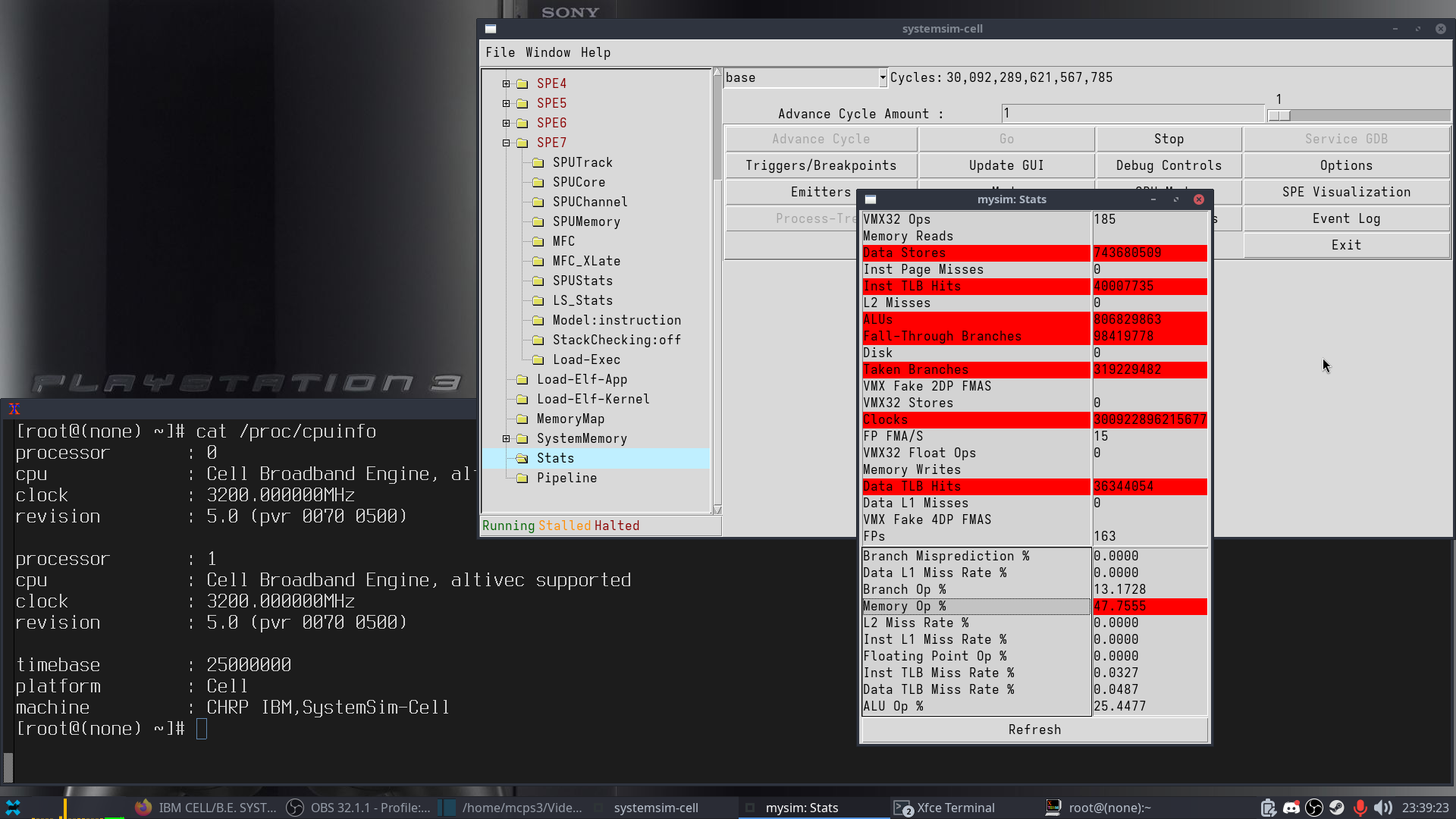
IBM’s Cell System Simulator is old but it can still run on modern Linux. It was originally intended to run on Fedora 9 (ppc64 or x86_64) and was packaged as rpm files easily installable with the rpm or dnf package management utils. In this tutorial I will show you how to get the simulator working in a Fedora 44 (x86_64) environment. It is possible to install the Simulator in other distrobutions as well but it is easiest to do in Fedora or RHEL since they are rpm-based and configured to install rpm-type packages by default.
1. Install dependencies
Modern Fedora still provides most of the dependencies required by the Cell System Simulator. Run the following command to install all dependencies that still can be installed from the Fedora software repos:
sudo dnf install perl perl-File-Basename perl-PathTools perl-File-stat tcl tk libX11 libgcc libstdc++ xterm
Also install dependencies for building tcl and tk from source:
sudo dnf install gcc binutils make zlib zlib-devel libX11-devel libXft libXft-devel fontconfig fontconfig-devel freetype freetype-devel
Notice the dependency on libX11. The Cell System Simulator was built long before Wayland was a thing in Linux. Since I still use X11, the Simulator is (as of yet) untested in a Wayland GUI environment. If you test it out under Wayland, I’d love to hear about if it works or not!
2. Download and extract the simulator archive
Run the following:
wget https://ps3linux.net/ps3-filez/IBM_Full-System_Simulator_for_the_CBE_Processor.tar.bz2
tar xvf IBM_Full-System_Simulator_for_the_CBE_Processor.tar.bz2
cd IBM_Full-System_Simulator_for_the_CBE_Processor
3. Install sysroot rpm
Package sysroot_image-3.1-1.noarch.rpm only contains a kernel and a disk image. As such it has no dependencies and will install without issues. Run the following:
sudo rpm -ivh --noverify sysroot_image-3.1-1.noarch.rpm
4. Compile and install tcl 8.5
There are two System Simulator dependencies no longer available from the Fedora repos: tcl 8.5 and tk 8.5. We are going to compile them from source code archives (tarballs) and install the files to a safe location on your system (/opt/tcltk) where they won’t cause any conflicts with the rest of your system’s software. Run the following to compile and install tcl 8.5:
sudo mkdir /opt/tcltk
wget https://ps3linux.net/ps3-filez/tcl8.5.19-src.tar.gz
tar xf tcl8.5.19-src.tar.gz
cd tcl8.5.19/unix
CC="gcc -m64" CFLAGS="-O2 -march=native -std=gnu89 -D_GNU_SOURCE" ./configure --prefix=/opt/tcltk --libdir=/opt/tcltk/lib64 --enable-threads --enable-64bit
make
sudo make install-strip
sudo make install-private-headers
cd ../../
rm -rf tcl8.5.19
5. Compile and install tk 8.5
Next we will compile and install tk 8.5. This time we must apply a patch (that I made) so it will compile under modern glibc and gcc. We must also tell the configure script where to find the tcl 8.5 libs and headers we intalled in the previous step. Run the following to compile and install tk 8.5:
wget https://ps3linux.net/ps3-filez/tk8.5.19-src.tar.gz
wget https://ps3linux.net/ps3-filez/tk8.5.19-remove-strrchr-declaration.patch
tar xf tk8.5.19-src.tar.gz
cd tk8.5.19
patch -p1 < ../tk8.5.19-remove-strrchr-declaration.patch
cd unix
CC="gcc -m64" CFLAGS="-O2 -march=native -std=gnu89 -D_GNU_SOURCE" LDFLAGS=-L/opt/tcltk/lib64 CPPFLAGS=-I/opt/tcltk/include ./configure --prefix=/opt/tcltk --libdir=/opt/tcltk/lib64 --enable-threads --enable-64bit --with-tcl=/opt/tcltk/lib64 --with-x
make
sudo make install-strip
cd ../../
rm -rf tk8.5.19
6. Install the system simulator rpm package
Since your rpm utility does not know about the tcl and tk libs we compiled and installed under /opt/tcltk/lib64, it will refuse to install the simulator rpm package. We must use the power of Admin to force the installation with the Hammer of Thor: --force --nodeps. Run the following:
sudo rpm -ivh --noverify --force --nodeps systemsim-cell-3.1-25.f9.x86_64.rpm
7. Test out your new Cell CPU System Simulator
First we must set the environment variable SYSTEMSIM_TOP to systemsim’s top-level directory /opt/ibm/systemsim-cell. You should set this variable in your .bashrc or .bash_profile file for future convenience. Temporarily set your SYSTEMSIM_TOP variable for testing the Simulator in your current bash session:
export SYSTEMSIM_TOP=/opt/ibm/systemsim-cell
In the simulator’s command line we must set the LD_LIBRARY_PATH variable to the directory containing the tcl and tk libs we built in steps 4 and 5 (/opt/tcltk/lib64). DO NOT set LD_LIBRARY_PATH in your .bashrc or .bash_profile files as this is considered to be bad practice (it will cause ALL programs to look inside your /opt/tcltk/lib64 directory first when searching for their required shared libs, which is not ideal behavior). Always set the LD_LIBRARY_PATH variable as part your System Simulator’s command line, which should look like the following:
LD_LIBRARY_PATH=/opt/tcltk/lib64 /opt/ibm/systemsim-cell/bin/systemsim -g -q
The -g option enables the Systemsim’s GUI interface. The -q option is for quiet mode.
8. (Optional) Save the simulator documentation and clean up
Run the following:
cp -v SystemSim.Installation.pdf SystemSim.Users.Guide.pdf SystemSim.PerfAnalysis.Guide.pdf ~/Documents/
cd ../
sudo rm -rf IBM_Full-System_Simulator_for_the_CBE_Processor IBM_Full-System_Simulator_for_the_CBE_Processor.tar.bz2